How to Make Your Instagram Account Truly Private
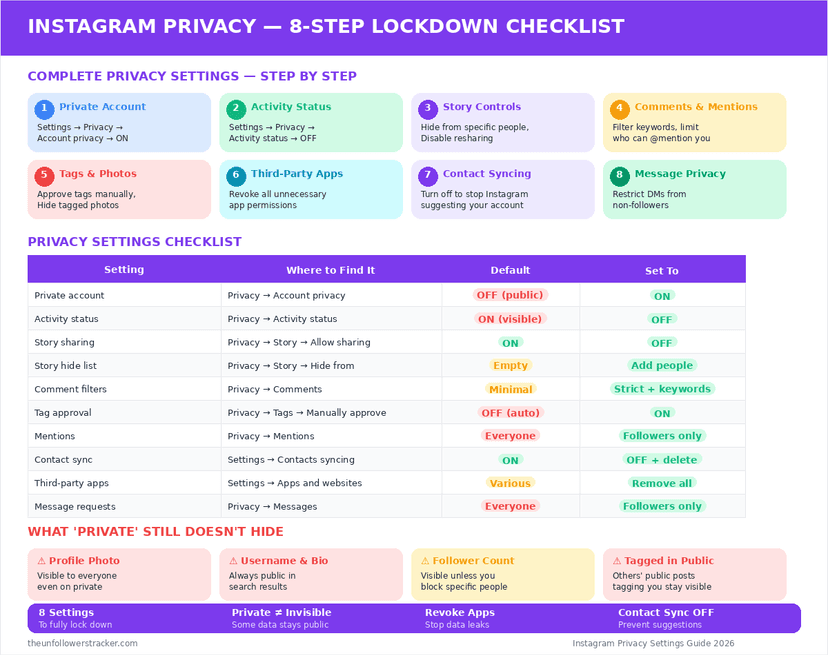
Switching to a private account hides your posts, Stories, Reels and follower list from anyone you have not approved. It leaves 5 things visible to everyone: your username, your name, your profile picture, your bio and your three counts. Five further settings sit outside the toggle and stay open until you change them.
What does switching to private actually hide?
The private toggle draws 1 line: approved followers on one side, everyone else on the other. Non-followers lose 5 things at once — your posts, your Stories, your Reels, your Highlights, and the ability to open your followers and following lists.
Your existing followers keep everything. Going private removes nobody: every account already following you stays approved, which is why the switch is not a way to shed an audience.
What stays visible even on a private account?
Instagram keeps a profile findable so people can request to follow it, and that requires a public shell. The shell holds 5 elements, which is more than most people expect when they make Instagram private.
| Element | Private account |
|---|---|
| Username and display name | Visible to everyone |
| Profile picture | Visible to everyone |
| Bio and link | Visible to everyone |
| Follower, following and post counts | Visible to everyone |
| Posts, Reels, Stories, Highlights | Approved followers only |
| Follower and following lists | Approved followers only |
| Comments you left on public posts | Stay public |
| Likes you gave on public posts | Visible in that post's like list |
| Old Stories reshared by others | Stay on their account |
The counts have no off switch. Instagram publishes all 3 numbers — followers, following and posts — on every profile, public or private, and no setting anywhere hides them.
How do you lock down an Instagram account?
6 settings, in the order that matters. The 1st is the toggle everyone knows; the other 5 are what leave a public account sitting inside a private one. Working through all 6 takes about 4 minutes.
Step 1: Turn on Account privacy
Settings and activity → Account privacy → switch on "Private account". Everything below this line assumes it is already on.
Step 2: Turn off Show activity status
Settings and activity → Messages and story replies → Show activity status. This hides your green dot, at the cost of hiding everyone else's from you — the trade-off is covered in who can see when you're online.
Step 3: Restrict Story replies and sharing
Story settings hold 3 separate controls: who can reply, whether others can reshare your Story to theirs, and whether your Story can be sent as a message. All 3 default to open.
Step 4: Set tags and mentions to manual approval
Tags → "Manually approve tags" stops other accounts attaching your profile to their posts without your say-so. Mentions has its own list beside it.
Step 5: Remove third-party app access
Settings and activity → Website permissions → Apps and websites. Every entry here was granted access at some point, and revoking is instant.
Step 6: Turn off contact syncing
Settings and activity → Account privacy → Contact syncing. Leaving it on keeps feeding your phone book to Instagram's suggestion engine long after you stop noticing.
Why can't I turn on the private toggle?
A business account cannot be private, and the toggle stays unavailable while the account is set up that way. Instagram treats a business profile as a public storefront, so the 2 states are mutually exclusive — as of September 2026 there is no version of the app where both apply.
The fix is to convert first: switch the account type to personal, then the private toggle becomes available. Everything else — posts, followers, DMs — survives the conversion.
Does going private stop screenshots or viewer tools?
Private stops the tools and does nothing about screenshots. A viewer tool reads public data, so a private account is genuinely out of reach for one — which is exactly why every site promising to open a private profile is lying, as set out in private Instagram viewer scams.
Your approved followers are the gap. Anyone you accept can screenshot every post you make, and Instagram sends no notification when they do. Going private changes who can look, never what they do with what they see.
What private does not touch
3 surfaces stay open regardless of the toggle. Comments you left under public posts remain public and searchable, your likes remain in those posts' like lists, and anything a follower reshared before you switched stays on their account.
Deleting your own comments is the only cleanup available, and it works one comment at a time. Instagram provides no bulk tool for it and no way to reach what other people have already reposted.
A second account kept for a small audience is the other half of this, and what a finsta is covers what links one account to another.
Notes are the feature most often missed in a privacy pass, since they sit above the inbox rather than on the profile — who can see your Instagram Notes.
Collaborative posts are the other exception, because a collab lands on somebody else's profile as well as yours: how collab post privacy works.
None of this covers an account belonging to somebody else. A teenager's account is restricted before a parent touches anything, and what applies automatically is in Instagram parental controls.
FAQ
Will I lose followers if I switch to private?
No. Every current follower stays approved, and the switch only affects accounts that were not already following you.
Can people still see my profile picture if I'm private?
Yes. Username, name, profile picture, bio and your three counts remain visible to everyone, because a profile has to be findable for anyone to request to follow.
Can I hide my follower and following counts?
No. Instagram publishes both numbers on every profile and offers no setting to hide them. Only the lists themselves become private.
Does a private account prevent screenshots?
No. Approved followers can screenshot anything you post, and Instagram sends no alert. The only screenshot notification on the platform is in vanish-mode DMs.
Should I switch from business to personal for privacy?
If you want the account private, you have to: a business account cannot use the private toggle. Convert to personal first, then switch privacy on.
Track Your Instagram Unfollowers
Discover who stopped following you and optimize your growth strategy with our free tool.
Discover Unfollowers