Instagram Tagged Photos: Who Can Tag You
Anybody can tag you unless you narrow the setting, and the tag does 2 separate things: it links your name inside their post, and it adds the post to the Tagged tab on your profile. Removing a tag ends both.
Hiding a photo ends only the second.
That distinction decides which action solves your problem. Instagram tagged photos sit under someone else's post, so the only thing fully in your control is whether they reach your own profile.
What actually happens when somebody tags you?
Four effects, and you control 3 of them. The 1st is the one that stays with the other person's post whatever you do.
| Effect | Can you undo it |
|---|---|
| Your username appears in their post | Yes — remove the tag |
| The post appears in your Tagged tab | Yes — remove or hide |
| Their followers can tap through to you | Yes, with the tag removed |
| The photo itself stays published | No — it is their post |
The last row is worth stating plainly, because it is what people are usually asking about. Removing a tag detaches you; it does not delete anything, and the photo remains where it was.
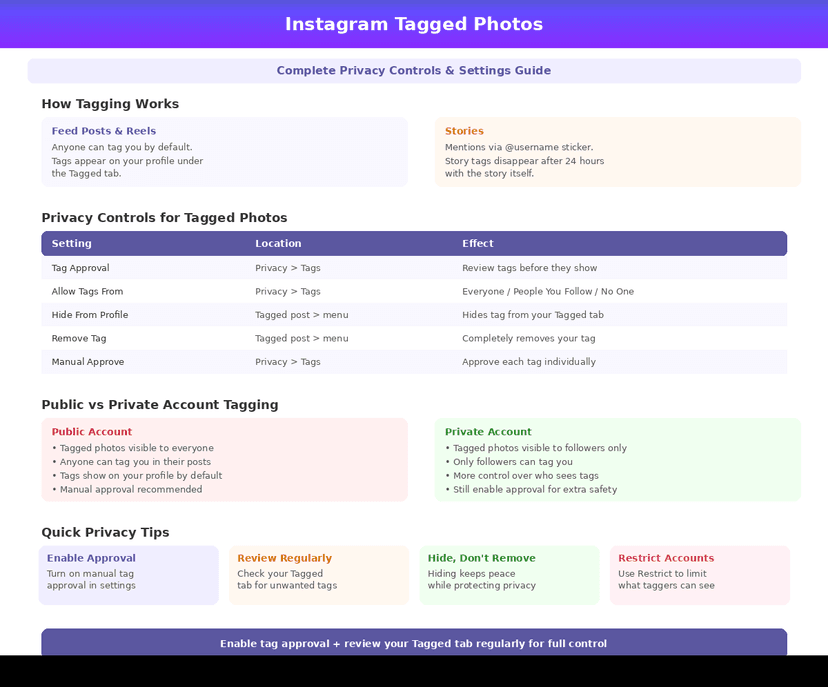
How do you control tagging?
Four settings, in Settings and activity → How others can interact with you → Tags and mentions. Work through them in this order — the 1st decides who can tag at all, and the 2nd decides whether it happens without you.
Step 1: Choose who can tag you
Three options: everyone, only people you follow, or nobody. "People you follow" is the useful middle setting, because it makes tagging mutual without switching it off.
Step 2: Turn on manual approval
Manually approve tags holds every tag until you accept it. Until you do, the post does not appear in your Tagged tab and your username is not linked, which makes this the single most effective setting on the page.
Step 3: Set mentions separately
@mentions in captions, comments and Stories run on their own control, in the same section. Restricting tags does not restrict mentions, and people regularly set 1 and assume they set both.
Step 4: Clear out what is already there
Open your Tagged tab and work backwards. Both actions live behind the 3 dots on each post — Remove me from post detaches the tag, Hide from my profile leaves it attached and takes the post off your Tagged tab.
Remove or hide?
Remove when you do not want to be linked to the post. Hide when the tag is fine and you simply do not want the photo on your profile — an event account tagging you in 40 photos is the usual case.
| Remove tag | Hide from profile | |
|---|---|---|
| Your username in their post | Gone | Stays |
| Post in your Tagged tab | Gone | Gone |
| Their followers reach you through it | No | Yes |
| They are notified | No | No |
Neither action tells the other person. If somebody keeps tagging you after you have removed tags, the next step is a person-level tool rather than a photo-level one — those are in restrict, block or mute.
Does a private account stop tagging?
No. Going private limits who can see your Tagged tab to your approved followers; it does not stop anybody tagging you, and it does nothing about the post itself, which stays as public as its owner's account.
Tagging is one of several things people expect a private account to cover and it does not — the full audit is in how to make Instagram truly private.
Collaborative posts are a different mechanism again. A collab puts the post on both profiles as a shared post rather than a tag, and the rules are in collaborative posts and privacy.
FAQ
The 5 questions below cover who can tag you, what removing a tag actually does, and where the settings live. All answers reflect Instagram in September 2026.
Can I stop people tagging me on Instagram?
Yes. In Tags and mentions, set tagging to people you follow or to nobody, and turn on manual approval so nothing appears without you accepting it.
Does removing a tag delete the photo?
No. It detaches your username and takes the post off your Tagged tab. The photo stays published on the other person's profile.
Is the person told when I remove their tag?
No. Instagram sends no notification for removing a tag or for hiding a post from your profile.
What is the difference between removing and hiding?
Removing takes your username out of their post. Hiding leaves the tag in place and only removes the post from your Tagged tab.
Does a private account stop people tagging me?
No. It limits who can see your Tagged tab. Tagging itself is controlled by the Tags and mentions settings, not by account privacy.
Track Your Instagram Unfollowers
Discover who stopped following you and optimize your growth strategy with our free tool.
Discover Unfollowers