What Is recently_unfollowed_profiles.json?
It lists accounts you unfollowed, with the timestamp of each one. It is not a list of people who unfollowed you, and Instagram ships no file that is. The file sits in connections/followers_and_following/ and appears only when you have unfollowed somebody recently.
Reading it the other way round is the most common mistake people make with an Instagram data export, and it is an easy one to make: the filename says "unfollowed", the export is about you, and nothing in the folder says which direction the record runs.
What is inside the connections folder?
Nine files, each one a list of usernames with timestamps. Every one records something you did or something done to your account by a person you can already see — none of them record a departure.
| File | What it holds | Whose action |
|---|---|---|
followers_1.json | Everyone following you now | Theirs |
following.json | Everyone you follow now | Yours |
recently_unfollowed_profiles.json | Accounts you unfollowed | Yours |
pending_follow_requests.json | Requests you sent, unanswered | Yours |
follow_requests_you've_received.json | Requests waiting on you | Theirs |
blocked_profiles.json | Accounts you blocked | Yours |
close_friends.json | Your Close Friends list | Yours |
hide_story_from.json | Accounts hidden from your Stories | Yours |
removed_suggestions.json | Suggestions you dismissed | Yours |
The 3 files people go looking for do not exist: there is no unfollowers file, no profile-visitors file and no viewers file. The export mirrors your account, and other people's decisions to leave were never stored in it.
What does the timestamp mean?
The moment you unfollowed that account, expressed as a Unix timestamp — the
number of seconds since 1 January 1970, in UTC. A value like 1756512000 is a
date, not an ID.
Any epoch converter turns it into a readable date, and spreadsheets do it with one formula. The direction is what matters more than the format: this timestamp is a record of your action, so it never tells you when somebody stopped following you.
Why is there no file for who unfollowed you?
Because Instagram does not keep that event. A follow is a row in a table and an unfollow deletes it — there is no history to export, which is why no setting, no screen and no archive gives you one.
That absence is what every "see who unfollowed you" app is working around. The honest version compares 2 lists you already have; the dishonest version asks for your password, and the difference is set out in checking unfollowers without a password.
Step 1: Request the export in JSON
The format matters. HTML is readable in a browser and awkward to compare; JSON is what every tool expects and what the filenames above describe.
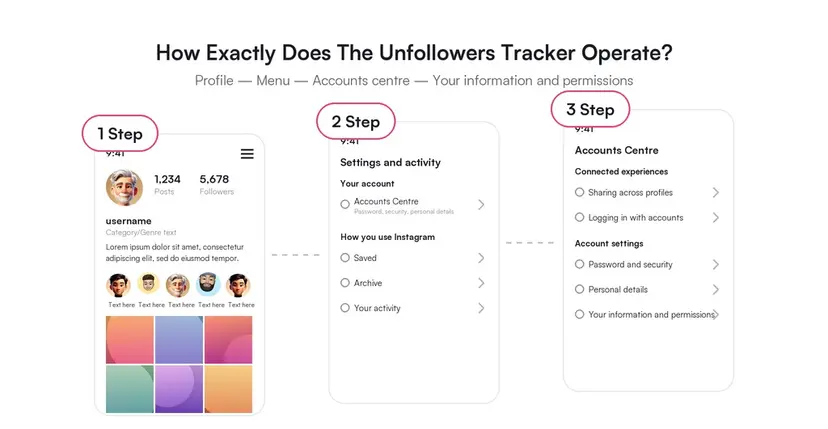
Open Settings, then Accounts Centre, then Your information and permissions, then Download your information. Choose JSON, select the followers and following category rather than everything, and pick the date range you want.
Step 2: Wait for the email, then open the archive
Instagram builds the file on its own schedule and emails a download link when it is ready — usually within a few hours, and longer for an account with years of photos in it.
Ask for the followers and following category alone and the archive is small and fast. Requesting everything pulls in every photo and video you have ever posted, which is what turns a 10-minute wait into a multi-day one.
Step 3: Read the file without any tool
Open connections/followers_and_following/recently_unfollowed_profiles.json in
any text editor. Each entry has an href to the profile, a value holding the
username, and a timestamp in the format above.
The file is absent from the archive when you have unfollowed nobody in the window Instagram tracks — that is not an error and there is no setting that turns it on.
How do you find out who unfollowed you?
By comparing your own 2 lists rather than by looking for a file. Everybody in
following.json who is missing from followers_1.json is somebody you follow
who does not follow you back.
That is a non-followback list, and it describes the present rather than the past: it shows who is not following you now, never the date anybody left. Two exports taken a month apart give you the change between them, which is the closest thing to an unfollow log that exists — the full method is here.
The export is the one method that survived every platform change. Which changes broke what, with dates, is in what changed that affects unfollower tracking.
The export is only the part Instagram hands back on request — what it holds about your searches and interests is wider than the ZIP.
FAQ
The 5 questions below cover what the export contains, what it means and what it cannot tell you. All answers reflect Instagram's export in September 2026.
Does recently_unfollowed_profiles.json show who unfollowed me?
No. It shows accounts you unfollowed, along with the time you did it. No file in the export records other people unfollowing you.
How far back does the file go?
Instagram does not document a window, and the file covers recent activity only. An account that has unfollowed nobody lately gets no file at all.
What format is the timestamp?
A Unix timestamp in UTC — seconds since 1 January 1970. Any epoch converter or a spreadsheet formula turns it into a date.
Can I delete the file to undo an unfollow?
No. The archive is a copy, not the live account, so editing or deleting anything in it changes nothing on Instagram.
Is JSON or HTML better for tracking unfollowers?
JSON. It is the format tools read, and it compares cleanly between two exports; HTML is built for reading in a browser rather than for comparison.

Track Your Instagram Unfollowers
Discover who stopped following you and optimize your growth strategy with our free tool.
Discover Unfollowers